
Are you in a 20th century or a 21st century law firm? Lawyers produce, review and store massive amounts of paper. If your law firm is not truly paperless its powers that be should be ashamed of themselves. It’s time to move your law firm into the 21st century and use technology to not only save your firm money by doing away with the cost of filing and storing paper, but also allow all law firm personnel to access client and internal firm documents in a matter of seconds. This article describes exactly how my small law firm became a paperless law firm.
My small law firm has been 100% paperless since March 2004. Here are some important facts about our paperless law office:
- We have 190,000+ documents in our paperless system.
- Our lawyers and staff are able to find any client document in 5 – 10 seconds and have the document displayed on a computer monitor.
- All of our documents are viewable over the internet from any where in the world.
- Each attorney can apply security (or not) to restrict access to a document to authorized firm personnel.
In 2004 I practiced law alone with no support staff other than my wife who was also my paralegal, secretary, bookkeeper and file clerk. We went 100% paperless in March of 2004. We do not keep hard copies of any documents.
I have a very high volume, document intensive practice. When I first wrote this article on October 29, 2005, my wife and I had saved 970 documents (46 documents a day excluding weekend days) in the previous month. Most documents we save are documents we create, but we also scan and save a lot of incoming correspondence and other documents. I can easily determine how many documents we save a month by looking at the document number (in my document management system) of the first document we create in any month and the comparing that number to the number of the latest document we create in a month.
For a solo or small firm, it is very easy and relatively inexpensive to create a paperless law office. I am extremely happy I made the switch. I can find any letter, document, notes of a meeting, Excel spreadsheet, .pdf document, Power Point Presentation or piece of paper that relates to a client, matter or contact in a few seconds and have it displayed on my computer monitor. It’s a wonderful thing. All of our six attorneys and our legal assistants and secretaries love our paperless system because it is much easier and less time consuming than filing hard copies in a file in a file cabinet.
My small law firm now has four attorneys and four legal assistants. We continue to create a lot of paper documents – over 1,500 a month.
Why Paperless if Good
There are several reasons why a paperless office is the way to go:
- It saves the time and expense of having people file documents in traditional hard copy files.
- It saves the expense and headaches of file storage.
- It saves the expense and time delay of getting documents from closed storage.
- It’s green and doesn’t adversely affect the environment.
- If your building is destroyed or your office vandalized, your documents are safe and not affected (assuming you have a proper backup system).
- With a good document management system attorneys can attach security to every document so that only authorized people can access the document.
- It allows firm lawyers and personnel to have almost instant access to documents.
My favorite reason for being paperless is the last item. If somebody calls and asks me a question about a document in our system, I can find and open a signed copy of the document in pdf format in a matter of seconds. People who do not know we are paperless are frequently shocked that I can access their document so quickly.
Hardware & Software Needed to Go Paperless
Here’s how we went paperless:
1. In 2004 I bought two Xerox Documate 252 scanners (one for me and one for my wife, my legal assistant) for about $900 each. It’s about the size of a shoe box and sits next to our flat panel computer monitors. It has a very small footprint. Now every attorney and legal assistant has a personal scanner on his or her desk. Personal scanners on people’s desks are absolutely necessary if you truly want to be 100% paperless. You must make it simple and convenient for everybody in the firm to scan documents and input the documents into your document management system (another must have item of law office technology).
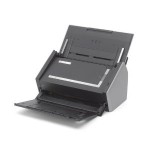 Scanner Advice: The scanner I now buy and recommend you buy is the Fujitsu ScanSnap iX500 Scanner for PC and Mac. Amazon sells this scanner for $400 – $450 (Amazon varies the price). This is a smoking deal – you get a 25 page per minute color personal scanner that comes with Adobe Acrobat X standard software. Acrobat is needed so that scans open automatically as pdf files. We love this scanner. It’s the size of a shoe box. It has a 50 page sheet feeder and can scan business cards and color photos. For more about this scanner real my article called “The Fujitsu ScanSnap ix500 – A Great Law Office Scanner.”
The scanners you see in computer stores like Best Buy, Staples and Office Depot are slow home use type scanners. When you shop for an office scanner, you want speed (at least 20 pages per minute) and a sheet feeder that takes at least 25 pages. If the scanner on sale doesn’t prominently display its pages per minute scanning speed, it means the scanner is much too slow (a few pages per minute) to use for anything other than infrequent home scanning. Years ago I bought three HP 3380 4 in 1 printer, scanner, fax and copiers for $700 each. They print, fax and copy great, but the fastest I could ever get the HP 3380 to scan was 2 pages per minute in black and white at 300 dpi. Very fast high volume scanners are several thousand dollars and up, but most small offices don’t need that kind of speed (50+ pages per minute). Manufacturers of medium and high speed scanners display the scanner speed because that is one of the main features buyer’s seek.
2. All lawyers and staff have Acrobat XI Standard Win
3. Our computers are on a network. All data files are saved on the server. Our system makes daily backups to the cloud. We use Mozy Pro and Jungle Disk for automatic backs over the internet to a secure web storage site.
4. We use Time Matters for many things, including document management. I’ve used Time Matters since 1998. It is an incredible program without which our productivity would be drastically reduced along with a corresponding reduction in income. I bought my first document management program (PC Docs – later Docs Open) in 1992 for $350 a user. I believe that EVERY (w/o exception) practicing lawyer who has a lot of documents should use a document management system. Having a document management system is one reason I can find any document I seek in a few seconds.
That’s all the hardware and software we used to make our 100% paperless office.
Paperless Office Procedures
Here’s how we actually do the paperless thing:
1. When we receive a hard copy of a document or if we create a document such as a letter or contract, we either scan it with a scanner (if it’s in hard copy format) or “print” to Adobe .pdf (if it’s in Word format) to create a pdf version of the document in a few seconds. Having a personal scanner at our desks is critical for a successful paperless system. You want the user/office personnel to be able to scan the document contemporaneously with creating or handling it. The user is best able to determine the appropriate information for the document to input in the document profile. You must indoctrinate your staff to do contemporaneous scanning and saving to get maximum efficiency, staff productivity and attorney ability to access scanned documents in the system.
2. To scan a hard copy of a document, we insert the document (up to 50 pages for the sheet feeder, but I usually limit it to around 25 pages to reduce the chance of a paper jam) into the sheet feeder of the Xerox 262. If the document is letter size, we press the simplex or the duplex button on the scanner and the scanner then scans the document at about 25 pages per minute. If the document is legal size, I press another button to change to scan format #2, which is legal size paper. I then press simplex or duplex button to start the scan. We scan at a resolution of 300 dpi (preconfigured in the Xerox 262), which produces a good quality printed version of the document.
3. In a few seconds or maybe a minute if the document is 25 pages, the document automatically appears on the screen in Adobe .pdf format, even if Adobe was not previously loaded.
4. We click on the TM save icon in Adobe Acrobat, which causes the TM document profile screen to appear on the screen. To add a document to the TM document management system, the document must be saved using TM’s document profile.
5. In 10 – 15 seconds we enter the following information into the TM profile: document code (PN for promissory note, OA for Operating Agreement, etc.), the name of the document and the client, matter or contact. By pressing F2 in the appropriate field or by typing the client, matter or contact info, TM will find the desired client, matter or contact. TM automatically inserts the initials of the person creating the document, the date and time of creation, the next document number, and most importantly, the document file name and file location on the network. We’ve configured TM to use its automatic naming feature and to automatically create a file name equal to the document name and save it in a folder under the client, matter or contact name. TM’s file naming and file saving location configuration feature is very robust and gives the user many options and a lot of flexibility. If needed, TM will automatically create the folder where it saves the file.
Step 5 is the last of the steps needed to free your office from paper. I did two test scans, one with a 35 page document and the other with a five page document. One minute and 45 seconds from pushing the scan button, I had scanned the 35 page document, converted it to Adobe .pdf format, created a document profile in TM and saved the profile and pdf file. The same process from start to finish for the five page document was 40 seconds.
Ask yourself how long would it take your secretary or file clerk to file a hard copy of a document. The filer must find and obtain the hard file, punch holes in the document, physically tack down and file the document in the file, then return the file to the appropriate location. Not only does hard copy filing take a lot longer than paperless filing, but it might take days or weeks before the document actually is filed in the client or matter file.
The old fashioned method of filing hard copies is inefficient, costly in terms of staff time to file, a waste of expensive office space for row after row of file cabinets, a waste of time for lawyers and staff to find and deliver files to personnel, and expensive to store long term.
As for setting up the hardware and software and training staff to scan and save into TM, any good TM consultant should be able to configure a scanner and TM’s document management system and teach users how to do operate the paperless system in a very short period of time. I taught my wife how to scan and save in TM in a 20 or 30 minute session. It really is just as easy as I made steps 1 – 5 above seem.
Practical Note: If you convert to a paperless or semi paperless office, don’t waste the time, money or energy to scan and index existing documents and files except those that are actually being serviced at the time and inactive files that you think you will need in digital format in the near future. Start fresh and scan going forward. Most of your old files will rarely if ever be accessed so it does not make sense to convert the inactive files to digital files unless it is for the purpose of eliminating file and storage space.

Richard, I was recently hired at a small law firm and I have convinced the firm to go paperless. Which is no small undertaking considering we do medical malpractice litigation and generate a massive volume of paper.
I have looked at several scanners and agree with your assessment that you need one with at least 25 ppm scanning and an automatic document feeder.
One question I had was if you use OCR software when you are scanning? We can have many thousands of pages of medical records and discovery documents for a single case and were wanting the search capability that OCR would give us.
My other question is whether you use any Bates Stamp software and if so, what you’d recommend.
Thanks,
Ernest
We don’t normally OCR our scanned pdfs of originals or pdfs that are emailed to us. If you want to OCR a document it is very simple to do if the person doing the scanning has Acrobat standard or pro. Once the doc pops up in pdf, there is a menu command in Acrobat that when selected will OCR the entire document or only the pages the user selects. It is fast, but it does substantially increase the file size. The quality of the OCR depends on the quality of the original document scanned into pdf.
Acrobat can also do Bates stamping, page numbering, background imaging and probably anything else you want to do to a pdf.
We have a multiuser version of Acrobat 9 standard on our server so everybody in our office can easily OCR or Bates stamp a pdf if needed.
Thanks Richard, I really appreciate the assistance.
Ernest
Richard, as hardcopy documents come into your firm and you scan them, how are those original hardcopies handled? Depending on your answer…how do you ensure that a matter doesn’t get buried?
When we get a hard copy of a document via mail, hand delivery or any other method, it goes to the addressee who scans it in his or her personal scanner and saves the pdf to the client or matter in our Time Matters document management system. If the document is a copy we shred it. If the document has an original signature on it the addressee prepares a transmittal letter and sends the letter with the document back to the client with a statement to keep it in a safe place. Everyone seems to follow our policy that is: scan documents the same day the document is received.
If the document requires action such as a Formation Agreement for a new Arizona LLC, the person who gets the document and scans it will save the pdf in two places:
1. In Time Matters in a contact record called LLC New. This is where we save all new LLC Formation Agreements using the document name format: FA date first word of the llc name, i.e., FA 120424 World. We also tell TM the document type code is EL, which means Engagement Agreement.
2. In Time Matters in a new contact record created in the name of the LLC. We give the document a name using the document name format: FA date, i.e., FA 120424. The document type code is EL. When creating the new contact record in TM we enter the codes: LLC for LLC, SA05 for our firm being the LLC’s statutory agent starting in the month 05 so we can bill the client for our LLC service every year in April, CLI = client.
Once the Formation Agreement is saved in TM under the name of the LLC with the appropriate codes our LLC legal assistant can click on the LLC tab in TM and it will display a list of all 3,300+ LLCs I have formed in chronological order from most recent to oldest. My legal assistant is given a spreadsheet view of the LLCs and can see where each LLC is in the formation and post formation process. Very easy for her to see she has one or more new LLCs to form.
You can configure TM to do that type of data display for any type of legal services you provide.
Helloo Richard:
Your article is very timely for me. I have an older large copier, printer, scanner that needs to be replaced and I need to decide whether I will buy two smaller all in ones to replace it. We scan some of our docs but are starting to scan more and more as time goes by. We still save paper though.
What brand and model of “printer” do you use? Do you have one large printer or do your small scanners also serve as printers?
Thanks, Ed
Each attorney and legal assistant has an HP LaserJet P2055dn Monochrome Printer at his or her desk. This is a fast high quality laser printer that will do duplex printing if needed. It prints 35 pages per minute. Amazon is selling it today for $305.
We also have a Xerox Phaser 6360 laser printer. It prints 42 pages per minute in black and white and COLOR. We print 15,000 – 20,000 pages a month on this printer. I’ve used it for about four years and three times I’ve had to get the Xerox tech guy out to fix a problem. Because we have the Xerox under a maintenance plan the service calls only cost us the parts, not labor. I highly recommend a maintenance plan on this printer when the warranty runs out. It’s a great high speed laser, but its around $1,100 to replace all four toner cartridges.
I don’t buy any multifunction printers any more.
I guess you do not really need a photocopier because you can scan and print. Right?
Ed
Correct, although we do have an old HP 3300 four in one printer, scanner, fax & copier. We use it to make a quick copy or to copy from a magazine or a book.
Hi Richard,
I read your article about scanning and how you became a paperless office which was terrific. I was wondering if you could offer an opinion about which person (in general)would be the best contact in a law office to talk about our document scanning services..is it the Office Manager,Facilities, etc.? We currently do medical practices but would like to do law firms. Thanks for your advice.
Good question, but the answer varies from firm to firm. In bigger firms that have an IT person or department you’d want to start with the head of the IT department. The problem is the IT people might view you as a threat. If the IT person recommends your solution and people are not happy with the end result the IT person will take heat. If the firm personnel love the paperless system the powers that be may wonder why the IT person did not come up with the idea.
In smaller firms you have to figure out who makes the decision to purchase technology and related software. More often than not a firm may not have anybody that fills that position so you’ll want to find a person who has the power to spend money and then sell your concept to that person.
The problem for people who sell stuff to attorneys is that attorneys usually are very reluctant to spend money on technology.
[…] industry is one that has been transitioning to a paperless existence. A legal information site Keylaw gave some additional advice for firm’s interested in going paperless; lawyers looking to go paperless should have scanners, programs that help gather all of the […]
Richard- I have been researching different software and programs to create a paperless office for my boss. If I were to follow your suggestions but use Clio, would I still need to use Acrobat? Do you have any insight on Clio? I believe I would still need a high quality scanner, as well as personal scanners for each of the staff, but I want to make sure I am not making any hasty purchases/decisions.
The purpose of Acrobat is to convert the scanned document to a pdf file. If you have another program that will turn a scan into a pdf then you could use that program. I suppose you could also scan to a different type of file such as a jpeg, but pdf format is the universal file type for documents and an Acrobat scan converts to a relatively small file size.
I’ve looked at Clio, but don’t remember if it has good document management. I use Time Matters for contacts and document management. TM’s document management is excellent.
What brand and model of laser printer are you using at the present time in addition to your Fujitsu scanners
Everybody has a Hewlett Packard Laserjet 2055dn for a personal printer. It prints 35/ppm and does automatic duplexing. Amazon is selling it today for $340. I’ve used HP lasers since 1984 and I’ve never had to pay to repair one.
We also have a high volume color laser Xerox Phaser 6360dn that prints 42/ppm in color and does automatic duplexing. Amazon is selling it today for $1,500. Printing all black is relatively inexpensive, but each of the three color toner catridges is about $300. We print using a little color on documents so these color cartridges last a long time. You must purchase an annual maintenance contract for this printer. It doesn’t fail often, but if it does you will probably be better off to buy a new printer if you don’t have the maintenance contract.
We have been paperless since July 23, 2003, when we had a going-away party for the photocopier and welcomed our first scanner which was a Fujitsu 4120. About a month later we said good-bye to the fax machine and welcomed Efax.
We have 2 Fujitsu 6140 scanners that go 60+ pages a minute and 2 Fujitsu 6130 scanners that go 45 pages a minute, as well as 5 Fujitsu Scansnaps. All documents are saved to PDF before printing, and every single piece of paper we received is imaged. When we converted, we were a little over two years old. We bit the bullet and scanned all the existing documents or converted them to pdf.
As the sole owner of the law firm, the implementation did not involve and politics. I just decreed it and it was so. The problem has been our dealings with the outside world, insisting that others that deal with us serve us with electronic documents. We pretty much have everyone trained now. We still run into problems when we take over case from other attorneys who are paper-based. Sometime we get huge paper files that necessitate a great deal of clerical overtime to scan them. And we get protests from doctors and other lawyers who don’t like getting served with electronic documents. In all cases, we tell them to shove their objections up their ass, that we are absolutely not going to be served with reams of paper, and if they don’t like it they can go to hell. The bottom line is that the success of our going paperless has been that we have been uncompromising about it and have ignored the politics.
Congrats on being a smart lawyer who saw the light early on. Don’t you wonder why ALL lawyers aren’t paperless? I’m not a litigator so please explain what it means to be “served with electronic documents.”
Richard:
Great Article. Very informative. When you create your own documents and correspondence, do you create them in Word (or some other word processing program) and then convert them to pdf? Or do you strictly use Acrobat?
We create original documents in Word 2007 and save them in our Time Matters document management system by clicking on the TM Save icon in Word. The documents is saved in docx format. Most of the time when we send documents to people we tell Word to print to Acrobat and Acrobat then creates a nice pdf from the Word document. We then click the TM Save icon in Acrobat and save the pdf document in our Time Matters document management system.
Hi Richard,
This is a great article! Thanks so much.
My father owns a law firm in the UK and is wanting to go paperless. He has instructed me to help him. Did you consider using a company to do the scanning for you on a monthly basis? Surely companies like this exist in the US who have pitched their solutions? My father has been in contact with some companies who do the scanning themselves. What do you think?
My only fear is that getting your employees to do this is costly and time = money! I dont want to put together a system that takes up lots of time.
Any advice would be much appreciated.
Eric
I don’t recommend scanning closed files or even current files that have a lot of docs unless the particular file is one that is being used a lot. The reality is that closed files are rarely accessed and it isn’t worth the price to convert old hard copies of docs to pdf.
Pick a date and start scanning from that date forward. The only docs we have to scan are ones that are mailed to us. The time it takes a person to scan his or her correspondence each day is normally 5 – 10 minutes. Even our lawyers scan their own correspondence and they know exactly where to save it in our document management system. The vast majority of docs in our document management system are docs we create in Word or convert from Word to Adobe pdf to send to clients and others via email. For example when we form a limited liability company we produce about 15 documents in Word for each company, none of which need to be scanned. Our faxes come as pdf documents attached to an email message. Clients send us pdfs.
Our law firm is researching ways to do a hybrid sort of paperless office. There are four partners of the firm, two of which are not computer savvy and will not be willing to go completely electronic. They like their paper files and are not going to give that up. However, we spend a lot of money (approx. $10,000) per year on off-site storage for files. Granted this is about 13 years of files, because the firm has never destroyed files. Even if we destroy the files that are over the legal retention required, we still will be spending about $7,500 per year on storage and the destruction costs will bring us back in line with the $10,000 annually anyways. I am trying to find a more cost effective way to move forward and hopefully move into a paperless “storage” and offer a paperless office environment for attorneys that are interested in that. Do you have any recommendations on a hybrid system?
Richard:
I enjoyed the article and am in the process of implementing the same procedures in my office. One question I had: Do you have an electronic letterhead template with a digitized signature for correspondence that you send to clients and others via email. If you print a hard-copy letter on your letterhead with an orginal signature because client prefers, do you then scan the letter?
We do have Word templates that have our letterhead at the beginning of the document with a closing that has a digital signature. We also have traditional engraved letterhead. When we send a letter via regular first class mail we print the letter on the engraved letterhead and scan the letter and save it to the client in Time Matters. When we send a letter to a client via email we use the digital version of the letterhead and signature block.
read with great interest several of your articles online – one about the Fujitsu ScanSnap 1500 and the other on the paperless law office.
We have utilized a Linux server for many years now and the partners are very happy with it, however in my research I have found that most document management systems run on a Windows platform.
Do you now if it is possible to have a paperless office without have a Windows server?
Sorry, but I do not.
I enjoyed your article and have been attempting to go paperless. I would like your thoughts on one problem. We want to keep email in the same folder as paper correspondence that has been scanned as searchable pdf files. Time Matters doesn’t seem to allow that and saving and moving email files to a separate correspondence folder with the pdf files is very time consuming. Any thoughts?
Time Matters allows you to specify a document naming convention and folder location when you configure the document management set up. I set my Time Matters to save documents in a folder that TM creates automatically that is identical to the contact’s/client’s name without punctuation. All documents of any type for World Wide Widgets, LLC, are saved for example under a folder TM creates called “world-wide-widgets-llc.” If I were to scan a hard copy of an email and have Acrobat OCR it I can save the file to the client’s folder w/i TM.
If you use TM there is no need to print email messages and convert them to pdf and then save that pdf file in TM. Instead our Outlook is integrated with TM and we also use TM’s email program. If we send an email to a client or contact we do it from w/i TM’s email program so the email message is automatically saved in the client’s record under the Email tab. If we send or receive an email message w/i Outlook we can tell Outlook to save the message in the client’s record in TM so it is accessible in TM under the email tab along with the TM emails.
We have all emails (in and out) saved to the client’s record so we can go into that record and see or print or forward or reply to all emails. We can also search for text in all emails. We do not need to print, scan and save email messages because TM and Outlook do it all for us.
TM gives us a complete history of every client because if I go to a client’s record I can see all: (i) documents including Word docs, pdfs & Excel files, (ii) phone call records of incoming and outgoing calls, (iii) all emails in and out, (iv) notes about the client, (v) websites related to the client, (vi) calendar events for the client and (vii) other contacts (people or companies) related to the client.
I only recommend going the paperless office route if files are stored in encrypted format.
One freeware program is TrueCrypt that is perfectly suited for paralegals and lawyers. Once the freeware is downloaded a password key is generated on your computer, which means only you will be able to access your files. When you leave your computer, you simply dismount placing all of your files in a secure encrypted format.
I’m amazed at the number of law firms and practioners who upload sensitive files to cloud storage. Not only can those files be accessed by employees working for the private sector company, but the files are also vulnerable to data breaches and mining, since there is no state by state law pertaining to privacy within the private sector. One exception is California that has privacy law written into its state constitution (Const. art. 1 § I).
In short, the paperless office is wonderful provided the data stored on your computer is in encrypted format; and if using cloud storage it is based in a territory with strong privacy laws in place, e.g., Europe and Canada.
This is a great article. One of the best written that actually addresses the details.
I actually came across your site Googling for advice on going paperless AT HOME, especially as it pertains to CONFIDENTIAL information (i.e. personal legal documents, house and investment documents, other documents that may include SS#, etc. on them). I use Evernote to organize and more-or-less manage all the “non-confidential” stuff at home (projects, kid’s art projects, shopping list, gift ideas, etc.) however, I don’t know how to handle the important stuff. As such I feel like the streamlining and organizing of my home office world is on perpetual hold. Since you are clearly a pro when it comes to getting your professional world paperless, I am curious to know if you’ve applied the same techniques to your personal world and if so, what tools you use – most importantly, what program and/or method of backup do you utilize.
Do you use Adobe for electronically signing documents or do you use some other program?
Yes. I have engagement agreements in pdf format that include the secure digital signature field offered by Acrobat.
[…] Keyt, an Arizona lawyer who owns a small law firm, says in a blog post that going paperless allowed him to save almost 50 documents a day from being printed, and even […]
As a solo practicing attorney with two offices that are 100 miles apart, I could not function without having all my documents in electronic form. I have them organized in a case management application with two mirrored servers, one in each office. Had I set things up in 2013, I might well have chosen online case management, such as Houdini, ESQ, RocketMatter or Clio, or an online version of one of the traditional case management applications.
I also use the .pdfs with CaseMap to prepare summaries of the evidence, which would not be possible without a digital file of the records.
Great article. Another benefit that is often overlooked deals with client retention & satisfaction (especially if you are a transactional attorney). The old method of storing physical documents is horrible for client retention. As we all know, clients lose things over time and sometimes need access to documents that are in the possession of the attorney. With digital documents, a law firm can address a client’s needs real time by emailing document within seconds instead of trying to locate a document in a storage facility that may take hours … days … weeks. Clients expect more these days. Bryant Hansen, J.D. forensic.com
How do you go about saving hundreds and hundreds of emails, where the atty saves each in the string. It can start with him asking a question of other counsel. That gets saved. The other counsel answers. That gets saved, which shows the conversation starter email. My atty responds. That gets saved with the first two original emails. It’s redundant and a huge waste of time. I have tried training my attys to save the “last email in the string,” but to no avail. The attys also don’t put sufficient “subject lines,” and so all we see is the case name. Having to read each and every email that comes and goes in a conversation, again, is a huge waste of time and redundant. HELP!!!! If you all have a better way, please share. I’ve contacted several people I know in the legal community (I’m a Legal Asst x25+ yrs), and everyone says they do it the long way. Read and save. We spend more time reading emails than anything. It’s becoming a huge problem. Thanks for your help!!
Your article on the paperless office contains concepts very similar to my perception of the process. I operated an accounting practice in Calgary and ended up writing a simple program in visual basic to assist in navigating the clients working papers. All my working papers were digital from about 2004 until I sold the practice in 2009. The digital system did save time thus reduced labor costs. I had 4 employees including my wife.
Recently I wrote a more elaborate software system for Accountants working papers which I am now just starting to market.
I could easily create a legal version with some input from an experienced lawyer.
You can see an overview of the “working paper navigator” at the following site
The “overview video” is at the bottom of the page (just pause the video at the top of the page if you wish)
Let me now what you think
John W